The TLG Commerce Marketing department explains how to create a Facebook Business Manager account so you can manage your professional fan pages.
With Facebook Business Manager we can assign roles, grant permissions to people or businesses, and add pages, ad accounts and other assets connected to your business on Facebook, as Facebook itself explains. Let’s get started!

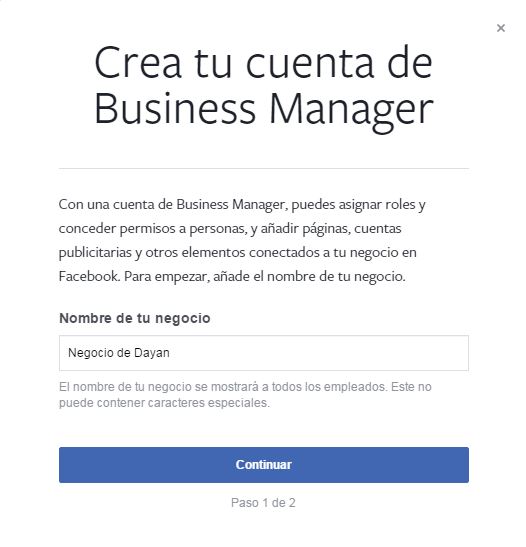
- Fill in the first field with your business name; for this example we used “Negocio de Dayan”
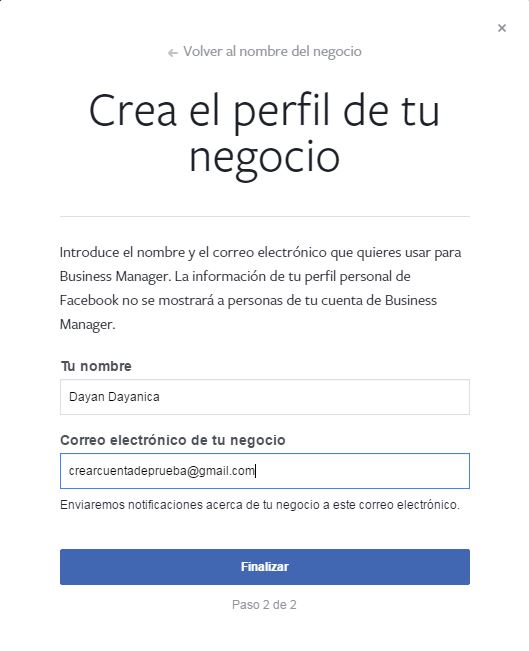
- In the next window, enter your name and email address.
After these 3 simple steps, we now have a Facebook Business Manager account; all that’s left is to set it up. Here we go:
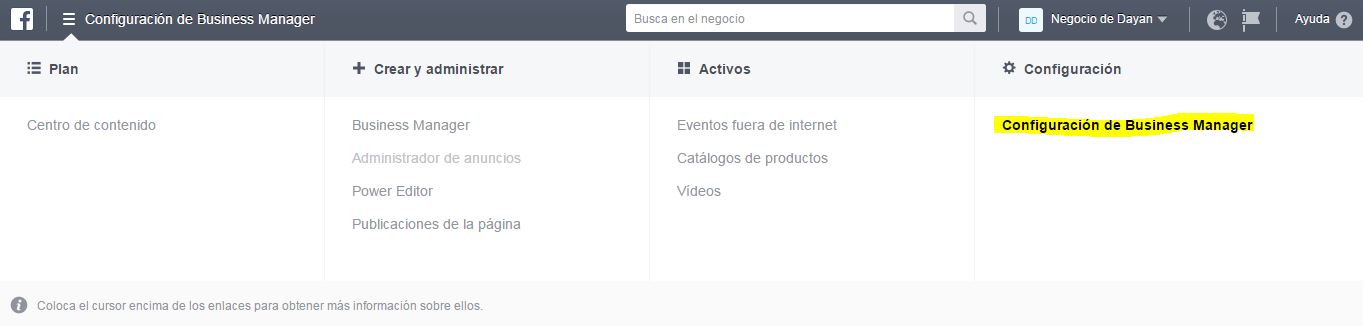
- Go to Business Manager settings
- Go to People and Assets, then Pages
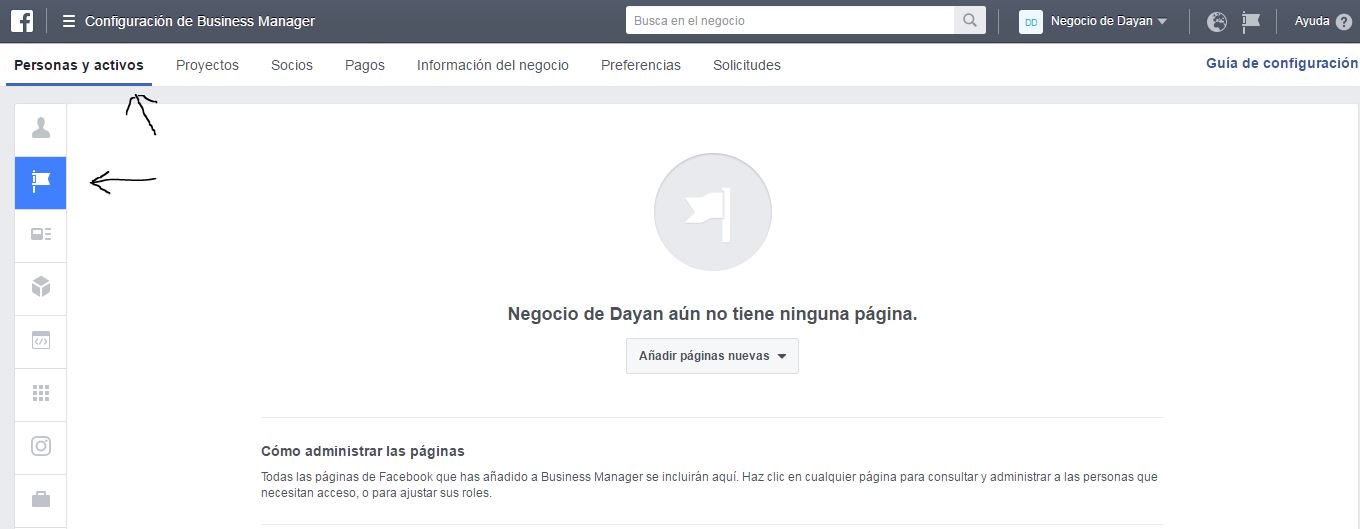
- Click Add New Pages in the center of the page, then Claim a Page.
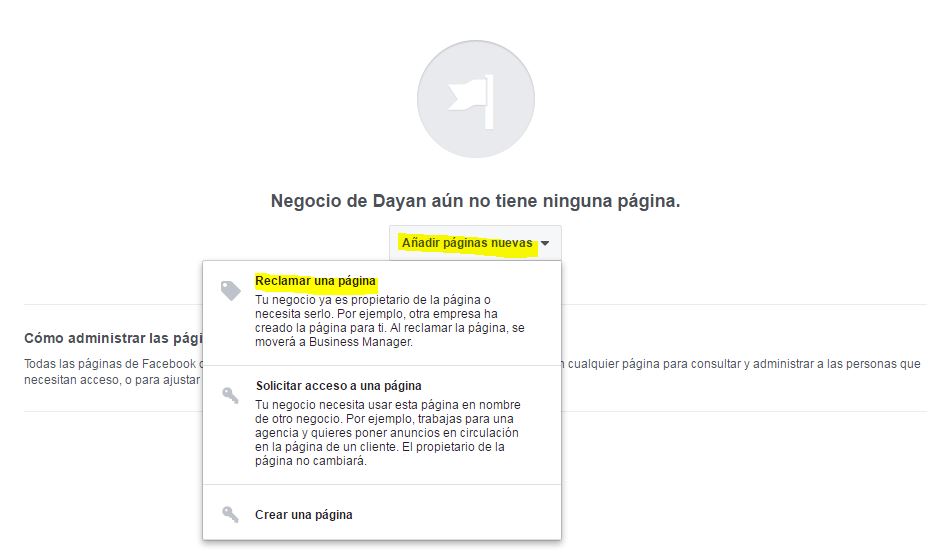
- When the window appears, enter your business name and claim the page.
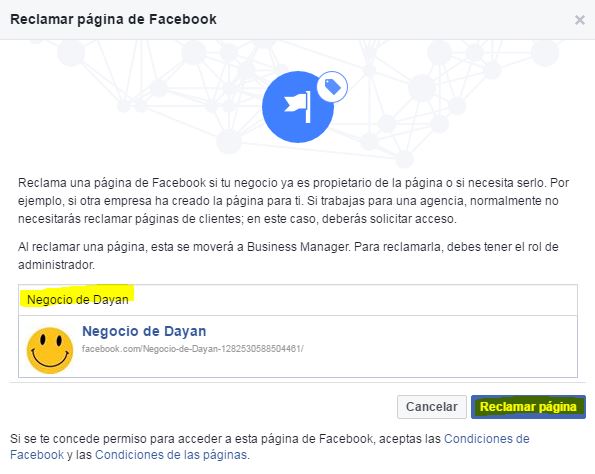
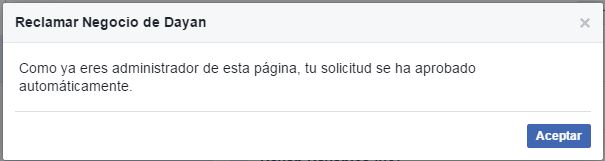
- Since we’re admins of our page, the request is approved automatically.
Now our page is added to Facebook Business Manager, but we still need to claim our ad account. To do so, we’ll follow the same steps, but this time under “Ad Accounts” instead of “Pages”.
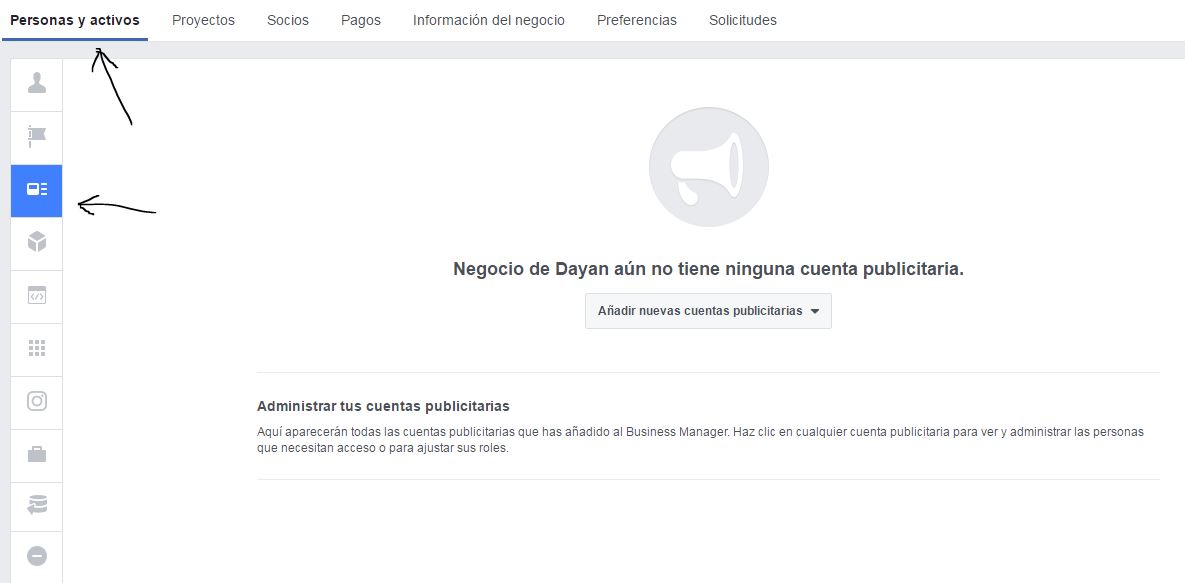
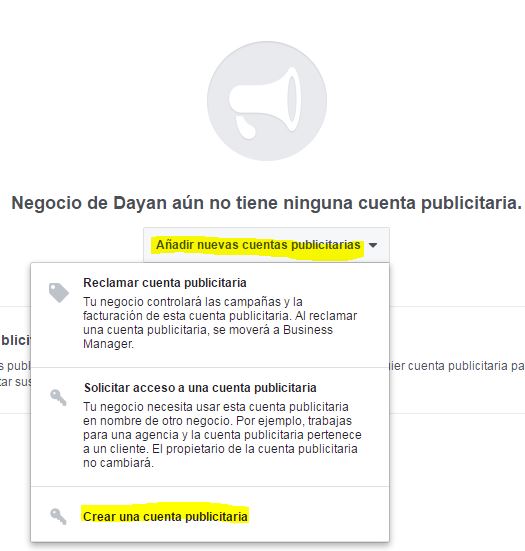
If we do not have an ad account, we can create one:
- Click “Add New Ad Accounts” and then “Create a New Ad Account”.
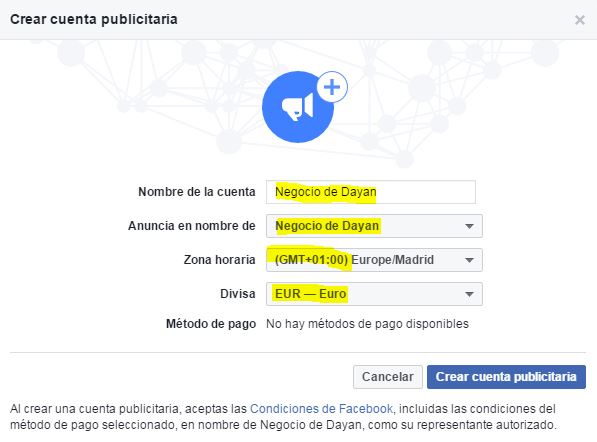
- Carefully check the following details and click to create the ad account in Facebook Business Manager.
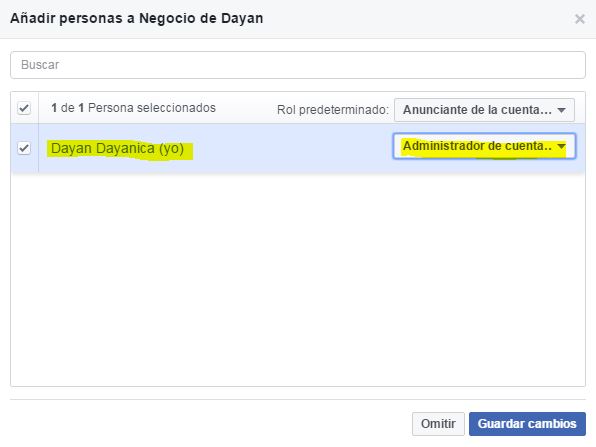
- Next, assign yourself as admin of the ad account in Facebook Business Manager.
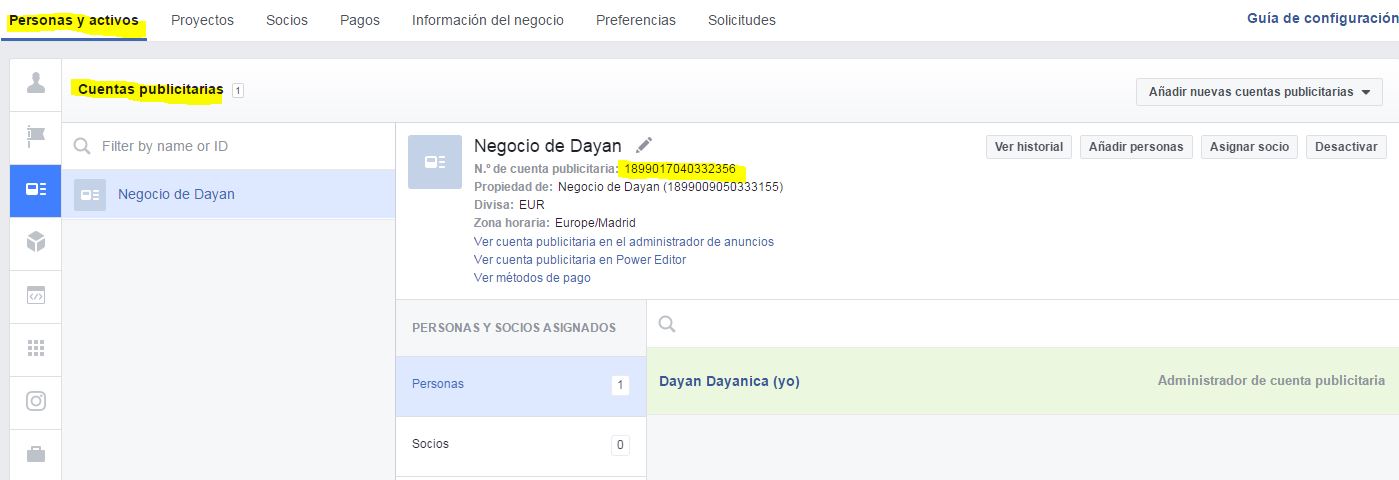
We now have our fan page and its ad account in Facebook Business Manager, which lets us advertise and manage our business on Facebook in the best possible way.
From here, if you’d like the TLG Commerce Marketing department to manage your Business Manager account for you, you’ll need an ad account number to complete the setup.
We hope this tutorial helps you create a Facebook Business Manager account as quickly and simply as possible.