Customer service quality is becoming a must when users decide which online store to buy from, so it’s essential to work on opening new communication channels with customers for closer, more personal contact.
A growing channel you can use to build a marketing strategy based on immediacy and closeness is WhatsApp Business, the business version of WhatsApp Messenger. This app lets you create a business profile and manage customer inquiries, automate messages, add your catalog and view statistics, among many other features.
Depending on the size of your company and how many daily messages you’ll handle, you have two options: the free version of WhatsApp Business, perfect for companies receiving between 50 and 500 messages. If you plan to work at scale, however, you should consider the paid option, WhatsApp Business API, connected to a cloud-based Helpdesk, but that’s a topic for another post.
In this post we’ll focus on how to build a marketing strategy with the free version of WhatsApp Business. This option works through a number linked to your company smartphone when you download the app, available for both Android and iOS. Want to know how to get started on WhatsApp? Below is a complete guide to mastering this growing channel.
First steps to get started with WhatsApp Business
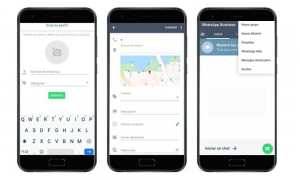
Download the app from Google Play Store or Apple App Store and set up your phone number. If you already have a WhatsApp Messenger account, you can transfer all your data to the Business account; keep in mind that the two apps can’t coexist, so if you install both on the same phone you’ll only be able to use one linked to your number. If you don’t have a WhatsApp account yet, you need to verify your number to start creating your profile.
Once your number is verified, add your company name, category (clothing and accessories, food, etc.) and a profile photo. For the latter, we recommend using your company logo so users can easily recognize your messages and you build your brand. Once created, you’ll see a screen very similar to WhatsApp Messenger, with chats, status and calls. The next step is to complete your business profile to give customers more information.
The business profile lets you fill in a company description, a short introduction and anything you think is important to share with customers, such as the products or services you offer. You also have sections to add your company address, opening hours, website, contact email and social media. How do you edit your business profile? Tap More options or Settings depending on whether you use Android or iPhone. Once the basic settings are done, it’s time to move on to automated replies.
Automated replies in WhatsApp Business
This feature is one of the best ways to connect while saving time. Business offers three features to automate your messages: Greeting, Away and Quick Replies. What is each one for? Keep reading!
- Greeting
When a user contacts you for the first time, you can set up an initial message that will be sent automatically to first-time contacts, welcoming them and explaining how you’ll use this channel, whether to share discounts and promotions, new products or other relevant information. Here you can also state your customer service hours or let them know you’re available 24/7.
How do you do it? Go to menu > business tools > greeting message and edit the message. Once edited, you can choose whether it goes to everyone who writes to you outside business hours, to people not in your contacts or to specific contacts.
- Away
Another great feature of the Business version is the ability to set an automatic reply for customers who write when you can’t respond or outside business hours. You can schedule these messages for times you choose: as a standard message after a customer starts a conversation, on a custom schedule or, if you’ve set business hours in your profile, outside those hours.
- Quick replies
This option is perfect for saving time on frequently asked questions, such as your physical store’s opening hours, which services or products you offer, and so on.
To do this, go to the quick replies section and add as many as you like: you can write text or add a media file and set the keyboard shortcut you’ll type to send the reply.
When replying to a customer with a quick reply, just type “/” followed by the keyword or keywords you used as a shortcut; the message template will appear and you can edit it to personalize it for that customer or send it as is.
Tip: You can create up to 50 quick replies and sort them alphabetically or by most used. Also, if a customer’s question includes one of your shortcut keywords, when you type “/” the matching reply will appear first.
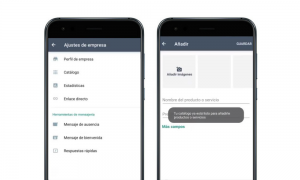
What better way to build your brand on WhatsApp than by keeping your product or service catalog always available on your profile? With WhatsApp Business you can include product images, prices and a description of each one. Here’s how to create it!
To start, open the catalog section in your business settings and tap add a product or image to choose the product images you want to show. For each product you can choose several images, the product or service name, price and a description to inform customers; you can also add the product link to take them straight to the product page in your ecommerce store and include the reference number so it’s easier to find on your website. You can repeat this as many times as you like, and when you need to show a product to a customer, you can do it right from the chat, in the catalog section under the paperclip icon at the bottom.
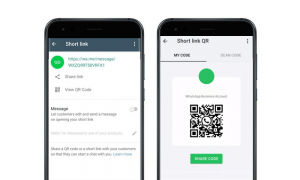
Now that your business profile, automated replies and catalog are set up, you can start dealing with customers directly, but how do you let them know this channel exists? You can create different marketing campaigns to announce in ads that customers can now contact you on WhatsApp using the link or QR code WhatsApp provides. Here’s how!
In the business tools section, go to “Short link,” where you’ll find both the link and the QR code to share your WhatsApp directly with contacts, through online marketing campaigns or by adding the QR code to your products and physical store. You can also customize the message customers send when they use the link or QR code, giving them extra information on the steps to join your WhatsApp community.
Final tips to make daily WhatsApp management easier
Everything is up and running for this new way of communicating with your customers! You start receiving product inquiries, booking requests, shipping status questions and returns, and you start sending promotions to your contacts. But how do you manage it all without missing anything? Here are two extra tips for managing your day-to-day on WhatsApp Business:
- You can label chats by topic! You can tag all those different inquiries with the labels that suit you best, so when you’re looking for a message on a specific topic, it’s easier to find. You can also use labels the other way around: to find contacts by topic and send messages to a specific broadcast list.
- Analyze the impact of your messages! WhatsApp Business gives you statistics to analyze message performance: how many you’ve sent, received, delivered and how many were read.
Now you’re all set to start your WhatsApp Business journey! At Trilogi – The Digital Agency we specialize in innovative digital marketing strategies to take your business to the next level. Contact us and we’ll help you grow!